4. Live Mode — real-time data (continued)
Step 2 — Start Live
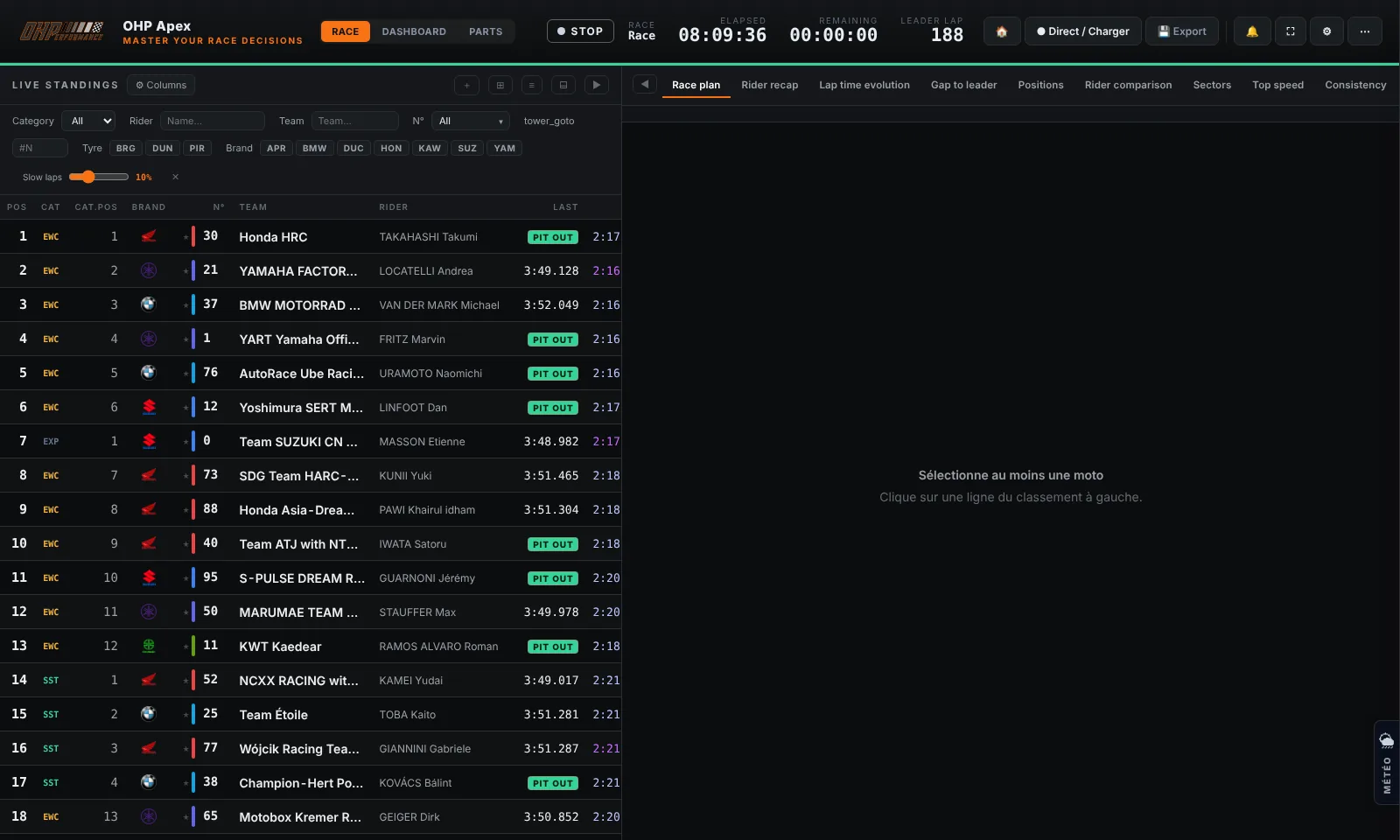
- Back on the dashboard, click the "● Live" button in the top bar.
- OHP Apex loads all passages of the session from the server (this may take a few seconds depending on data volume).
- The button turns ● Live green. The standings fill and update automatically every few seconds.
Warning
If the Live button stays grey or does not respond: verify that an event AND a session are selected in Settings. Without this selection, Live cannot start.
Changing session during the weekend
For example, switching from Qualifying to Race:
- Click ⚙️ to open Settings.
- In the "Session" list, select the new session (e.g. Race).
- Click "Save". OHP Apex automatically restarts Live with the new session.
Tip
No need to click Live again — changing the session in Settings automatically restarts the feed if Live was already active.
Stop Live
- Click "● Live" again. The button returns to grey. Data remains displayed but no longer updates.
Connection health indicator
| Indicator | Meaning | Action |
|---|---|---|
| ● OK | Data received normally | Nothing to do |
| ● SLOW | Update slower than expected | Check network quality |
| ● ERR | Connection lost or server error | Click Live to restart |
Info
Resilience: after a network outage, missed passings are caught up automatically when the connection returns (a "Connection restored" toast confirms it). Race control messages and the flag history — which cannot be re-downloaded — are continuously saved to live_backup.json next to the application and restored when Live restarts on the same session.