16. Advanced settings
Accessing settings
Click the ⚙️ icon at the top right of the dashboard to open the Settings panel. This panel centralises all configuration options.
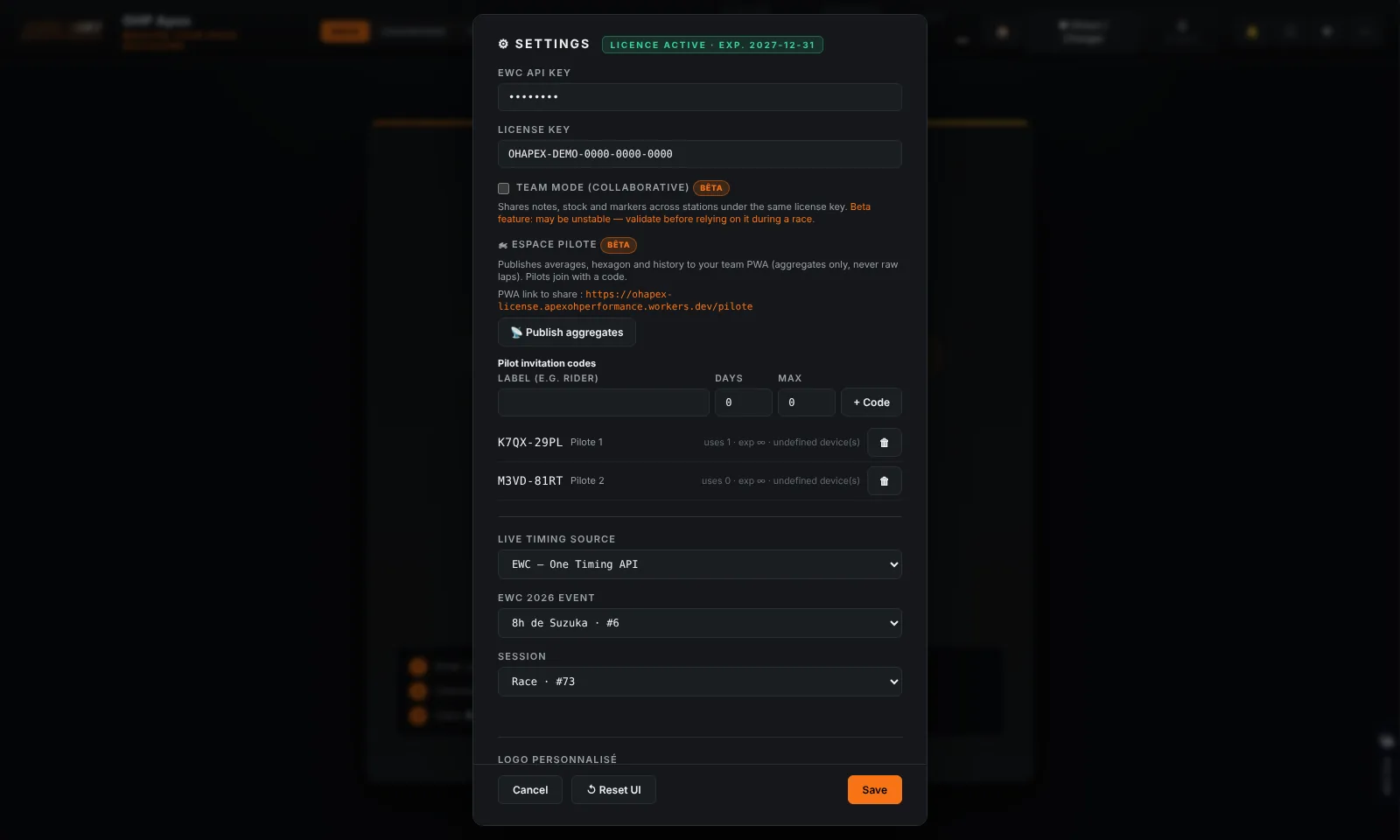
All options
| Option | Description | Default value |
|---|---|---|
| Licence | Entry and validation of the OHP Apex licence key | — |
| API URL | Address of the race data server (provided by organiser) | — |
| API Key | Identifier to access live race data | — |
| Custom logo | Replaces the logo in generated reports with your team logo | OH Performance logo |
| Fuel target | Number of laps after which a Pit Now alert is triggered | 18 laps |
| Cleaning threshold | Percentage gap above the best lap to exclude a lap from averages | 10% |
| Columns | Selection of columns visible in the standings | Standard columns |
Quick troubleshooting
| Problem | Solution |
|---|---|
| Application does not open (Windows) | Check that Windows 10/11 is up to date. Reinstall OHP Apex if necessary. |
| macOS — blocked on first launch | See page 2: right-click → Open procedure to bypass Gatekeeper. |
| Licence rejected even though key is correct | Check your Internet connection. Try again in 30 seconds. |
| No data in Live | Check the API key and URL in Settings. Test your network connection. |
| Report does not open | Allow popups for OHP Apex in system settings. |
| Replay is empty or incorrect | Check that the .json file is a valid OHP Apex export (not another format). |
Support & Contact
Info
OH Performance — For any question about your licence, the API key or how the application works: 📧 contact.ohperformance@gmail.com