6. Load a snapshot / Export
Differences between data modes
● LIVE
- Real-time data
- Auto-update
- Requires Internet
- Requires an API key
- Ideal during the race
▶ REPLAY
- Replays a recorded session
- Adjustable speed
- Works offline
- Requires a .json file
- Ideal for analysis
📂 LOAD
- Displays a frozen state
- No animation
- Works offline
- snapshot.json file
- Ideal for spot analysis
💾 EXPORT
- Saves the current state
- Creates a .json file
- Can be replayed later
- Share with team members
- Available at any time
Load a snapshot
Loading a snapshot displays a frozen snapshot of a session (the standings and all times at a specific moment), without animation. Useful for calmly analysing a specific state of the race.
- Click "Load" in the control bar.
- Select a
.jsonfile in your file explorer. - The standings fill immediately with the file data. You can analyse freely without time constraints.
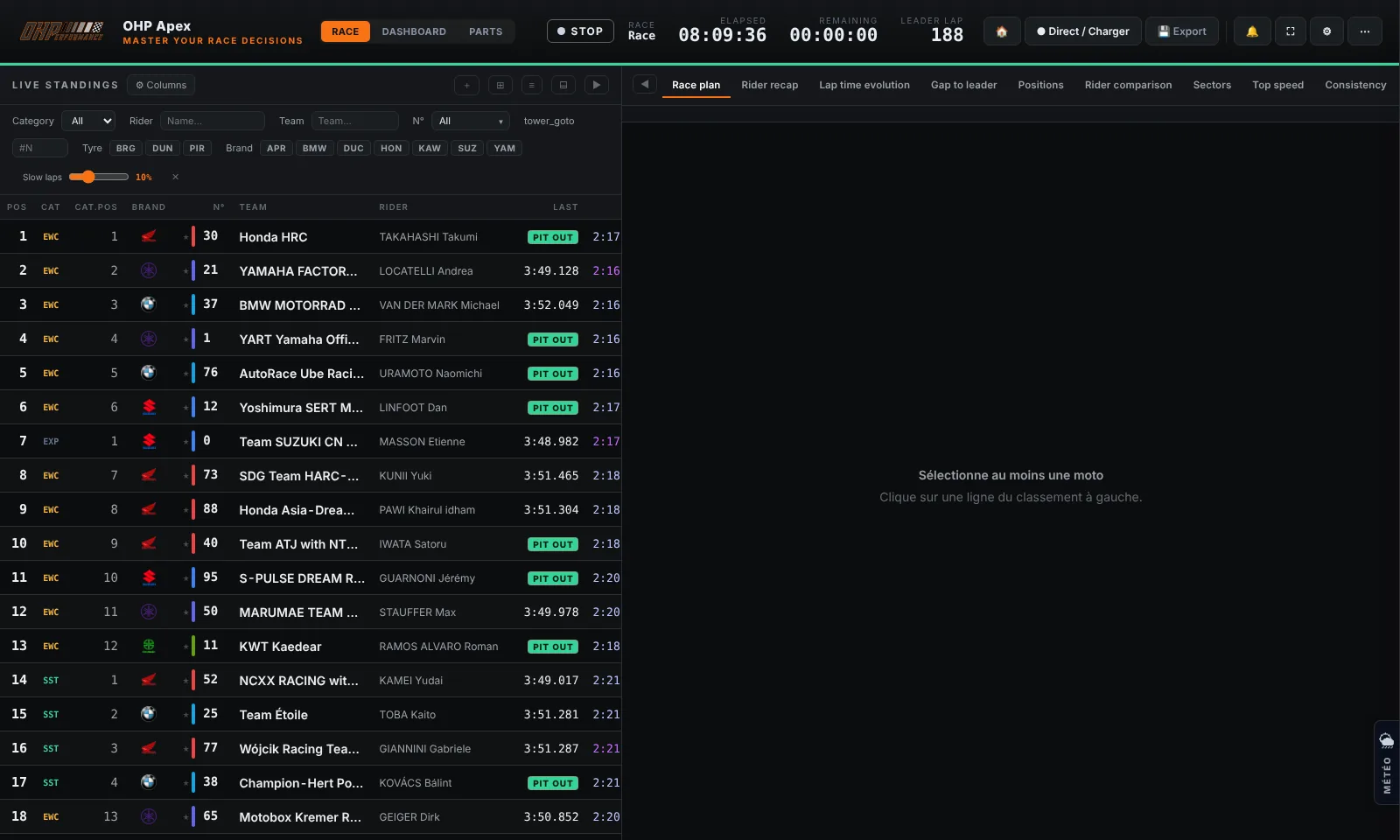
Export data
The export creates a .json file containing the complete current state (standings, lap times, sectors, riders). This file can be reloaded or replayed later.
- During or after a live session, click "Export".
- Choose the destination folder and give a name to the file (e.g.
lemans_2026_H18.json). - The file is saved. You can send it to other team members or keep it for analysis.
Tip
Best practice: Export regularly during the race (every hour) to have save points. These files can also serve as a basis for Replay mode.