7. The standings — reading and interacting
Reading the standings
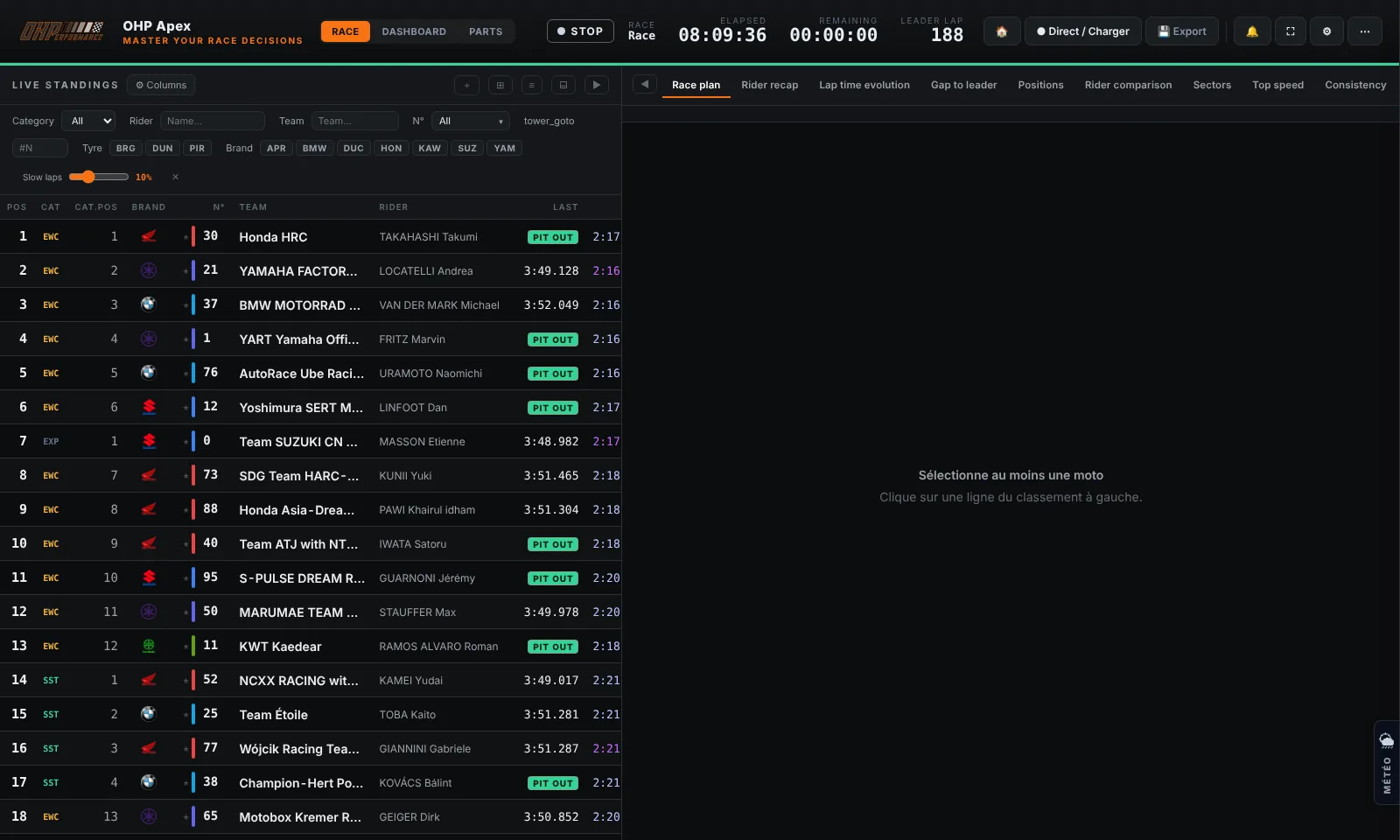
| Column | Meaning |
|---|---|
| Pos / # | Overall standings position and bike race number |
| Team | Team name and bike brand (Yamaha, Honda, Kawasaki…) |
| Laps | Total number of laps completed since the race start |
| Gap | Gap to the leader in full laps or in seconds if on the same lap |
| Best lap | Best race time for this bike (format m:ss.mmm) |
| Last lap | Time of the last recorded lap. PIT IN / PIT OUT badges driven directly by the official timing pit flags: PIT IN from pit entry (and on the out lap), PIT OUT once the first lap is completed, then back to times |
| Stint | Current stint number (S1, S2, S3… for each pit stop) |
| Stint laps | Number of laps completed since the last stop (reset to 0 on PIT IN/PIT OUT). The lap target is computed per bike from its measured consumption (tank ÷ consumption, see the Fuel consumption tab), falling back to the global target. The gauge also shows the estimated pit state: PIT or OUT chip, plus window/BOX |
| St | Bike status: ● on track · P in pits · ↗ out lap · ✕ stopped (no passing for over 6 min — probable retirement; the API provides no official retirement field) |
| S1-S4 | Intermediates: in live mode, each sector appears as soon as it is crossed; the completed lap stays visible for 20 s after the line then hides until the first sector of the next lap |
Interactions with the standings
Select a bike
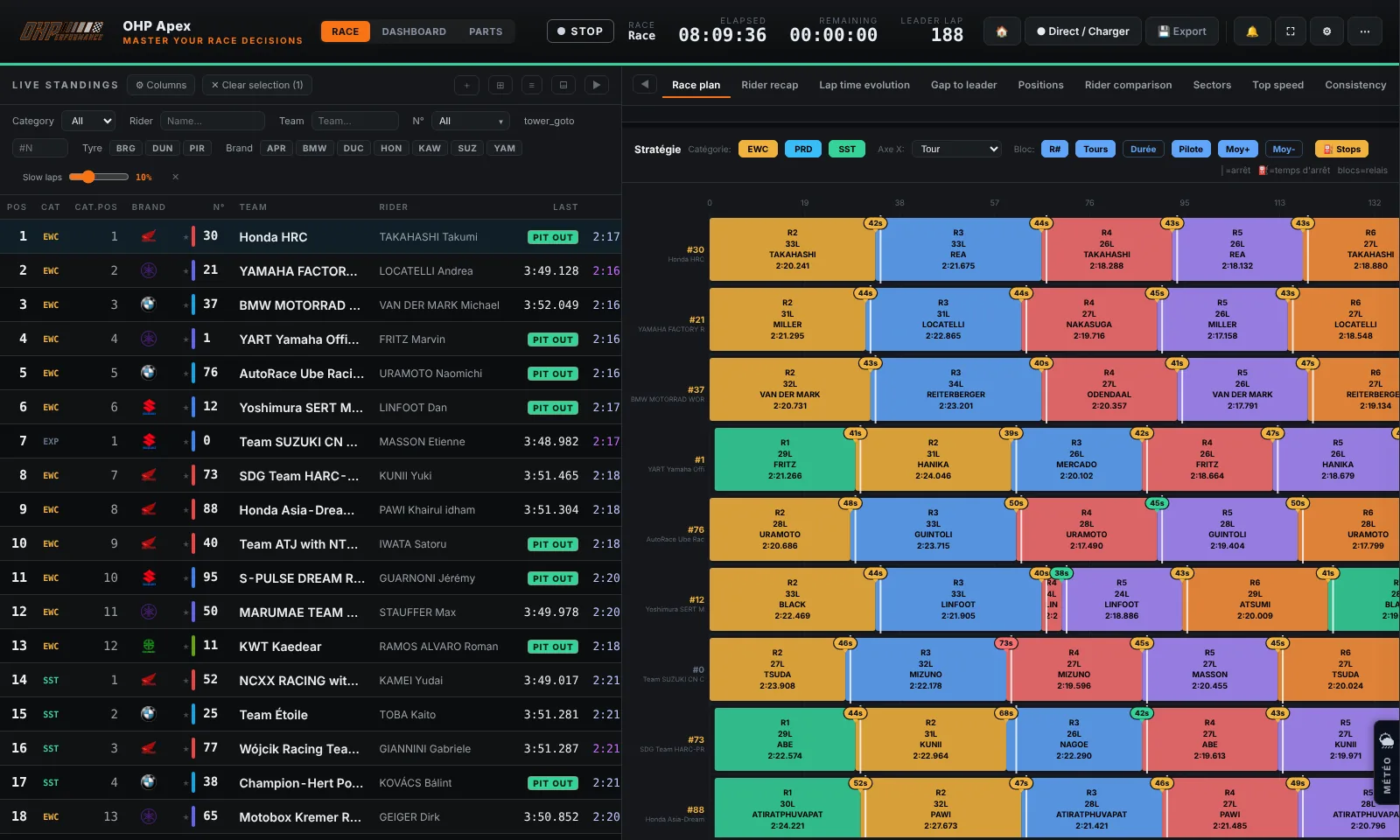
Click on a row to select the bike. It is highlighted and all analysis views update for this bike.
Set the reference bike
Right-click on a bike to set it as the reference. All gaps are then calculated relative to this bike.
Pin a bike
The ★ icon on each row lets you pin a bike to keep it visible in analyses even when it is not selected.
Standings animations
In Live or Replay mode, bikes animate when positions change: a bike moving up in the standings slides upward, one dropping down slides downward. These animations happen in real time.